
1- Jobup.ch & Jobs.ch & Indeed & Professional.ch Scraper
These websites have same process of running
1.1- Go to dashboard click on the Jobup.ch / Jobs.ch / Professional.ch Indeed scraper

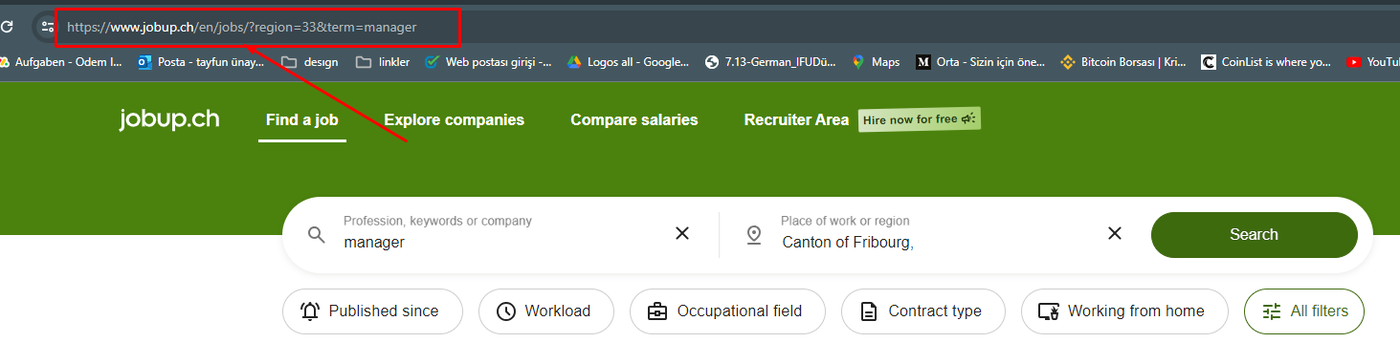
1.2- Go to Jobup.ch / Jobs.ch / Indeed / Professional.ch website, enter the keywords you want to search for, the region and the necessary filters, click the search button and copy the link of the page you are directed to
Add Filters + Click to Search:

Copy the Link:
1.3- Now paste the copied link into the Jobup.ch process you opened on octoparse, save and run the task
- Click to İnput URL Step
- Paste your URL
- Click to Apply
- Click to Save
- Run
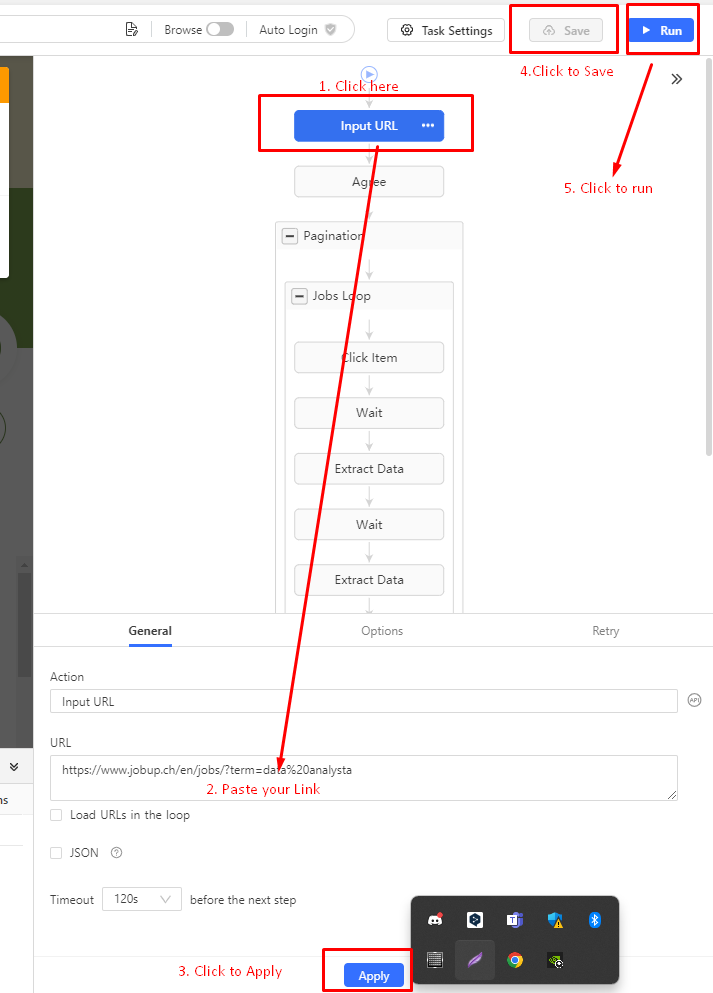
After pressing the Run button, all we have to do is wait for scraping and we can download the result as an excel list. This is the whole process for Jobup.ch
2- Job-room.ch
2.2- Go to dashboard click on the Job-room.ch scraper
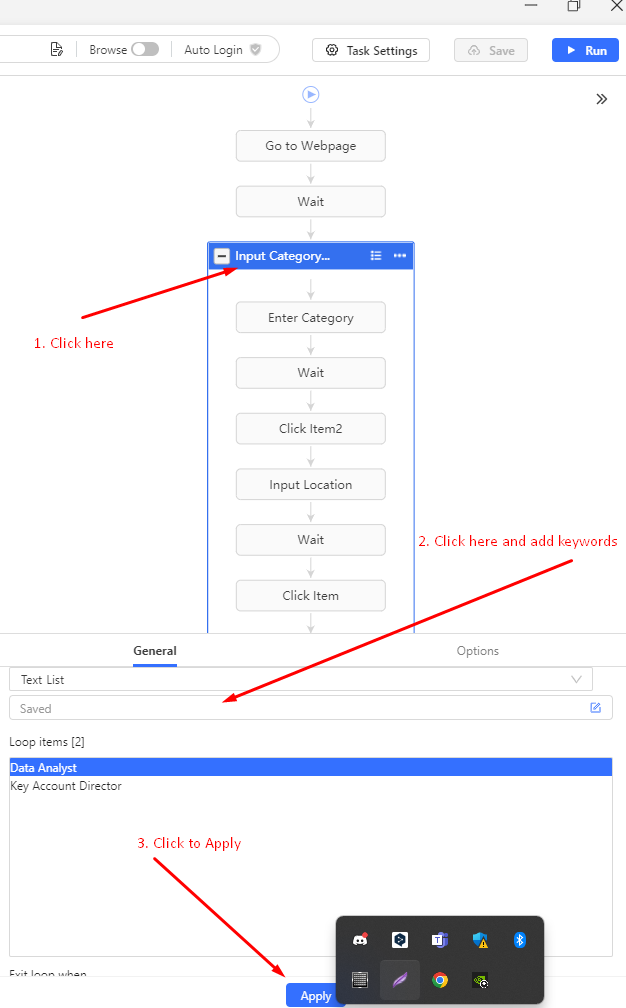
2.3- Enter keywords , Add the keywords you want to search for in the same structure
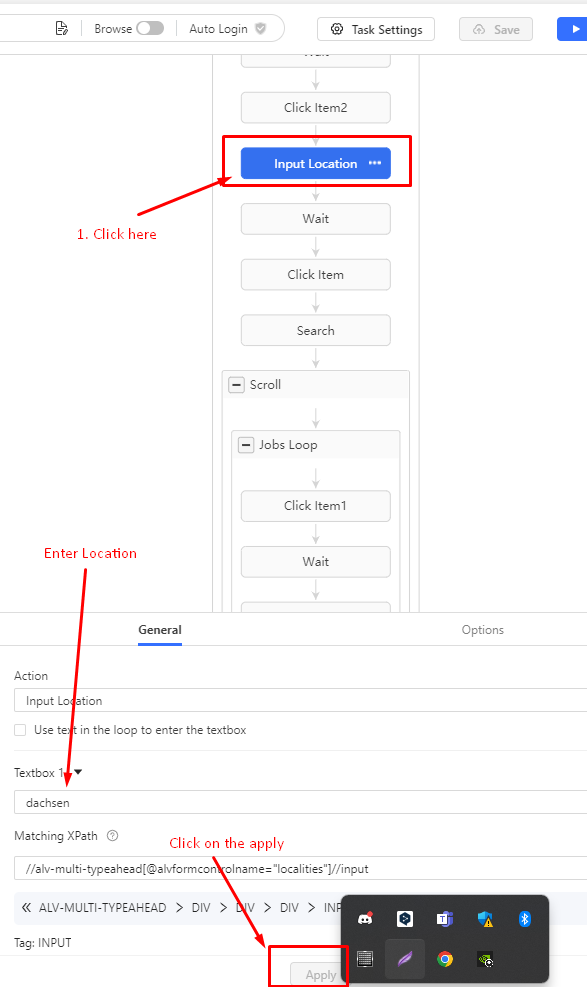
2.4- Input Location
2.5- To add other filters as published date etc.
What you need to do here is to start the process, click on view the process process and when the search for the filters you added manually is made and the relevant page is passed, stop the process and add the additional filters you want.After it start the process and wait for scraping.This is all process.
They kept the urls of each page on this site the same, so this process is more complicated than others but the RPA developer sent me a video and you can follow the process on this video.
Here is the video: